
Creating a website no longer requires coding skills or a big budget. With WordPress, anyone can build a professional website for a business, blog, or portfolio. This step-by-step guide is written specifically for beginners who want to set up WordPress (WordPress Setup) the right way from the start.
By the end of this article, you will have a fully functional WordPress website that is secure, fast, and ready for growth.
What Is WordPress and how do WordPress Setup ?
WordPress is the world’s most popular website platform. More than 40% of all websites on the internet use WordPress because it is:
-
Free and open-source
-
Easy to use for beginners
-
Highly customizable
-
SEO-friendly
-
Supported by thousands of themes and plugins
There are two versions:
-
WordPress.com – hosted solution with limitations
-
WordPress.org – self-hosted version (recommended)
👉 This guide uses WordPress.org, which gives you full control over your website.
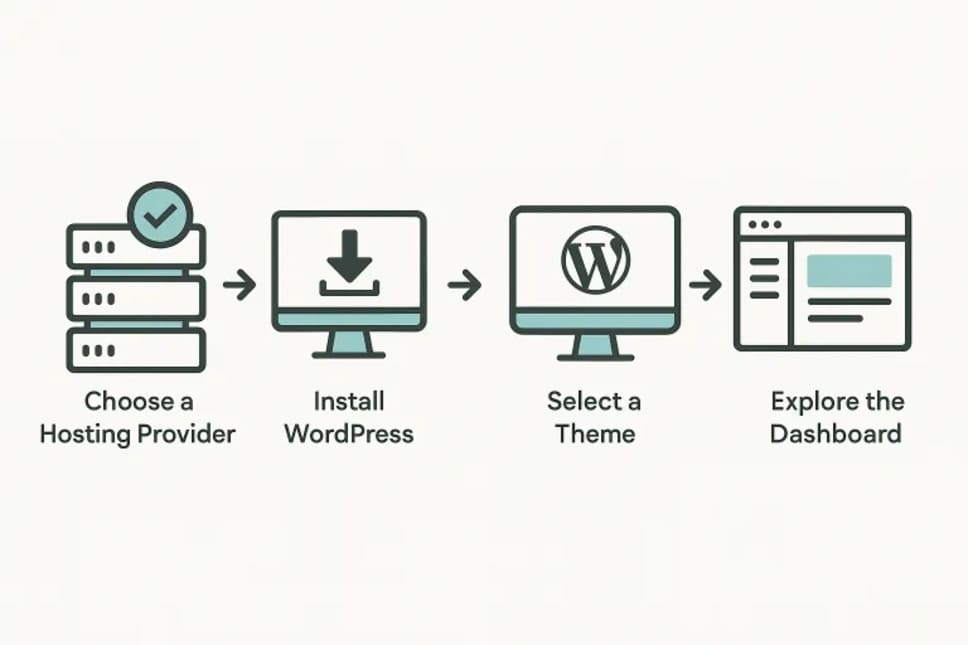
Step 1: Choose a Domain Name and Hosting
1. Choose a Domain Name
Your domain name is your website address (example: yourbusiness.com).
Tips for choosing a domain:
-
Keep it short and easy to remember
-
Avoid numbers and hyphens
-
Use
.comif possible -
Match your brand or business name
2. Choose a Hosting Provider
Hosting is where your website files are stored.
Look for hosting that offers:
-
One-click WordPress installation
-
SSL certificate (HTTPS)
-
Good performance and uptime
-
Customer support
Popular beginner-friendly hosting providers include shared hosting or managed WordPress hosting.
Step 2: Install WordPress
Most hosting providers offer one-click WordPress installation.
General process:
-
Log in to your hosting control panel
-
Find “Install WordPress”
-
Choose your domain
-
Set admin username and password
-
Complete installation
After installation, you can access your dashboard at:
Step 3: Basic WordPress Settings (Important)
Before designing your site, configure the basics.
1. General Settings
Go to Settings → General
-
Site Title
-
Tagline
-
Time zone
-
Admin email
2. Permalink Structure
Go to Settings → Permalinks
Choose:
This is best for SEO and readability.
Step 4: Choose and Install a Theme
A theme controls your website’s design and layout.
Recommended Theme Features
-
Mobile-responsive
-
Fast loading
-
SEO-friendly
-
Regular updates
How to Install a Theme
-
Go to Appearance → Themes
-
Click Add New
-
Search for a theme
-
Click Install → Activate
You can also upload premium themes if needed.
Step 5: Install Essential WordPress Plugins
Plugins add functionality to your website.
Essential Plugins for Beginners
SEO
-
Helps your site rank in Google
-
Example features: meta titles, sitemaps
Security
-
Protects against hacking and malware
Caching / Performance
-
Speeds up your website
Backup
-
Automatically saves your site
Contact Form
-
Allows visitors to contact you easily
Install plugins via:
Plugins → Add New → Install → Activate
⚠️ Avoid installing too many plugins — quality is better than quantity.
Step 6: Create Important Pages
Every professional website needs core pages.
Must-Have Pages
-
Home – What you do and who you help
-
About – Who you are and your experience
-
Services – What you offer
-
Blog – Educational and helpful content
-
Contact – Form, email, or phone
Create pages via:
Pages → Add New
Step 7: Create a Navigation Menu
Menus help visitors navigate your site.
-
Go to Appearance → Menus
-
Create a new menu
-
Add pages
-
Set it as the primary menu
A clear menu improves user experience and trust.
Step 8: Optimize for SEO (Beginner Level)
Search engine optimization helps people find your site.
Basic SEO Tips
-
Use keywords naturally in headings
-
Write clear page titles
-
Add meta descriptions
-
Use internal links
-
Optimize images (file size + alt text)
SEO plugins help guide beginners step by step.
Step 9: Make Your Website Secure
Security is essential, even for new websites.
Basic Security Steps
-
Use strong passwords
-
Enable SSL (HTTPS)
-
Keep WordPress, themes, and plugins updated
-
Install a security plugin
-
Limit login attempts
Step 10: Make Your Website Fast
Speed affects user experience and Google rankings.
Speed Optimization Tips
-
Use a caching plugin
-
Optimize images
-
Choose quality hosting
-
Avoid heavy themes
-
Remove unused plugins
Fast websites convert better and perform better in search engines.
Step 11: Publish Your First Blog Post
Blogging helps with:
-
SEO
-
Building trust
-
Attracting clients
-
Google AdSense approval
Blog Post Tips
-
Write helpful, original content
-
Use headings and short paragraphs
-
Add images
-
Answer real questions
Step 12: Prepare Your Website for Growth
Once your site is live:
-
Connect Google Analytics
-
Submit your sitemap to Google Search Console
-
Plan regular content updates
-
Improve design and content over time
A WordPress website is never “finished” — it grows with your business.
Common Beginner Mistakes to Avoid
-
Using weak passwords
-
Ignoring backups
-
Installing too many plugins
-
Using poor-quality themes
-
Publishing thin or copied content
Avoiding these mistakes saves time and money later.
Final Thoughts
Setting up WordPress is easier than ever, but doing it correctly from the start makes a huge difference. With the right setup, your website can become a powerful tool for:
-
Growing your business
-
Attracting clients
-
Building authority
-
Monetizing with ads or services
If you want a professional WordPress website that is fast, secure, and optimized for SEO, working with an experienced developer can save you time and help you avoid costly mistakes.
Want to Continue Learning?
Check out related articles on:
-
WordPress SEO tips
-
Best plugins for business websites
-
How to turn website visitors into clients
Frequently Asked Questions (FAQ)
Is WordPress really free?
Yes. WordPress itself is free and open-source. However, you will need to pay for hosting and a domain name to run a self-hosted WordPress website.
How long does it take to set up a WordPress (WordPress Setup) website?
For beginners, a basic WordPress website can be set up in 1–2 hours. A more professional website with design, content, and optimization usually takes a few days.
Do I need coding skills to use WordPress?
No coding skills are required. WordPress is designed for non-technical users. You can build pages, install themes, and manage content using a visual interface.
Which WordPress theme is best for beginners?
The best theme is one that is lightweight, responsive, and well supported. Avoid overly complex themes with too many features you don’t need.
How many plugins should I install?
Only install essential plugins. Too many plugins can slow down your site and cause conflicts. Quality and necessity matter more than quantity.
Is WordPress good for business websites?
Yes. WordPress is widely used for small business websites, portfolios, service websites, and blogs. With proper setup, it is secure, fast, and scalable.
Can I earn money from my WordPress website?
Yes. You can monetize your WordPress site through:
-
Google AdSense
-
Freelance or service offerings
-
Affiliate marketing
-
Selling products or services
Conclusion
WordPress is one of the best platforms for beginners who want to create a professional website without technical complexity. By following this step-by-step setup guide, you can build a website that is user-friendly, secure, fast, and ready for growth.
Taking the time to configure WordPress properly en (WordPress Setup) from the beginning helps you avoid common mistakes and creates a strong foundation for SEO, content creation, and future monetization.
Whether you are building a personal blog or a business website, WordPress gives you the flexibility and control needed to succeed online.
Recommended Article from Our Blog
If you are planning to grow your website and attract more visitors, we recommend reading:
🚀Increase Website Traffic Using AI: 10 Proven Strategies to Grow Blog Traffic in 2026
This article explains:
-
Basic WordPress SEO settings
-
How to structure content for search engines
-
Common SEO mistakes beginners should avoid
It’s a perfect next step after setting up your WordPress website.